How Can We Help?
Using the Patient Listing
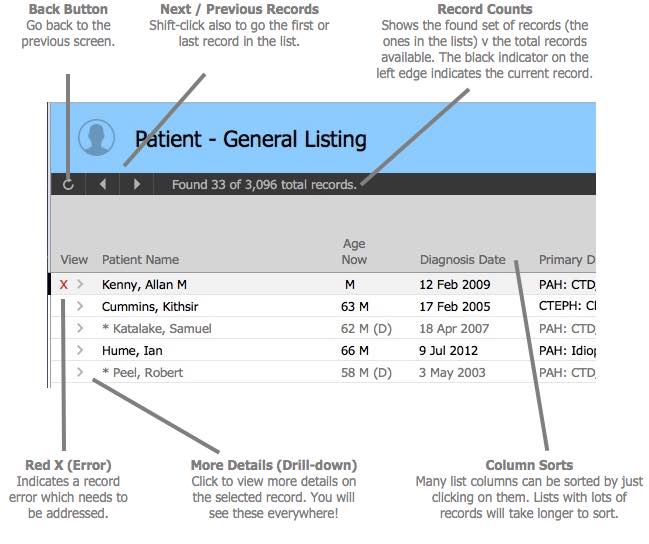
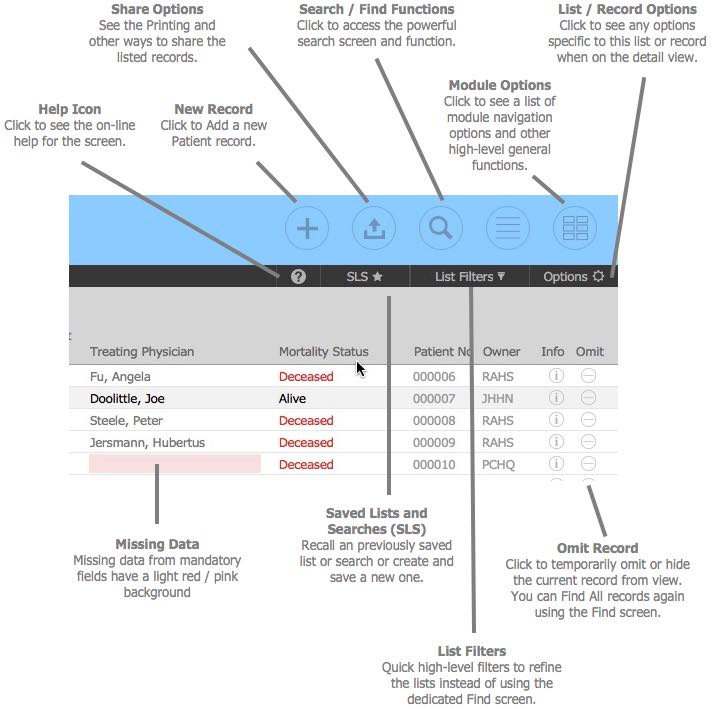
The Patient Listing shows the results of the last search or a predefined list on the first opening. Please study the diagrams below as many functions work the same way as all other lists in the software – getting to these functions well will save you lots of time!
Key Points
Lots to options are hidden underneath the various popovers however here are some key points on using the Lists.
- Clicking on selected columns with sort the records – generally is ascending order. You can also use the custom sort option underneath the Options button.
- Use the SLS (Saved Lists and Searches) to save and recall either the Last Search criteria or the current list of records. Very useful function!
- System Admin users can Shift-click the List icon to go access the Table View
- Use the Go Related function (bottom right) on the list to create a new window with just the related records showing. i.e.: You can create a List of ALL the medications for the listed Patients.
- Most Lists are able to be printed or emailed as PDF’s. Use the ‘Share’ icon to see the options for the appropriate list.
- Get to know the ‘Advanced Search Functions‘ – very powerful for isolating and analysing data!
- The Module Navigation icon (top right) also holds a heap of general and useful functions to explore.
- Print Previews: You must click the ‘Continue‘ button when previewing reports to close out of the screen and continue with the Print or Saving options.
– End –