How Can We Help?
Data Entry Guidelines

How to Enter Data Correctly
The data entered into this Registry is primarily used for research and statistical purposes, so it’s critical that the information entered is accurate.
Here is a summary of how data should be entered:
- Use Proper Case for all Names and Addresses
- Include the area code and spaces for phone numbers
- Enter dates carefully in the format of dd/mm/yyyy using the divider (/) symbol and NOT . or –
- Enter numbers only in number fields.
- Always click the null checkboxes for empty or missing values.
- Always pick a value from a dropdown list if available rather then typing it in manually. If a value you want is not in the list of options then please contact your database co-ordinator.
- Use the TAB key to go forward through the fields and only use the return key in multi-line comment fields
TIP: A few seconds reviewing the data carefully at the point of entry saves lots of time afterwards correcting errors.
| TYPE | DO | DON’T | WHY |
|---|---|---|---|
| Names | William Smith | william smith | Looks better, easier to read, more professional for correspondence. |
| Phones | 02 9936 4323 | 99364323 | Spaces make it easier to read. Other users may want to know the area code if calling from a different location. |
| Emails | my.name@domain.com | MyName@Domain.COM | Enter all email addresses in lowercase with no spaces. |
| Addresses | North Manly | north manly | Looks better, easier to read, more professional for correspondence. |
| Numbers | 23 | 23 – 50 | Only enter numbers in number fields. Invalid numbers make it harder to search on and the data can’t be used for stats. |
Entering Key Values for Diagnostic Tests
Entering correct values for diagnostic tests and other results is critical for the accurate and useful analysis over time. Some key points…
- Please check the results carefully before leaving a screen to ensure there are no typos or errors and that your entered value is in the expected units. Eg: Don’t enter a value in litres (L) if the expected units are in millilitre’s (ml).
- If you can’t read the written value then try to find the correct value from another data source. If the data is missing, then use X checkbox next to the fields value to denote that the data is not known. (see below). You can also use the comments field to note any anomalies.
- Empty fields with required values will show with a red background. A highlighted value (as shown below in yellow) signifies a contradiction. Eg. a value has been entered whilst also having the missing value checkbox enabled.
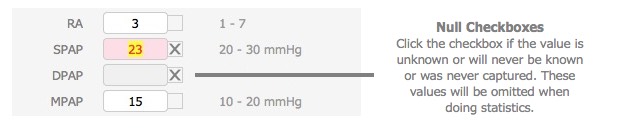
Please also see the specific topic for Entering Diagnostic Tests for more detailed information on this.
-End-