How Can We Help?
Entering Diagnostic Tests
Entering correct values for diagnostic tests and other results is critical for the accurate and useful analysis over time. Here are ome key points…
Entering Data
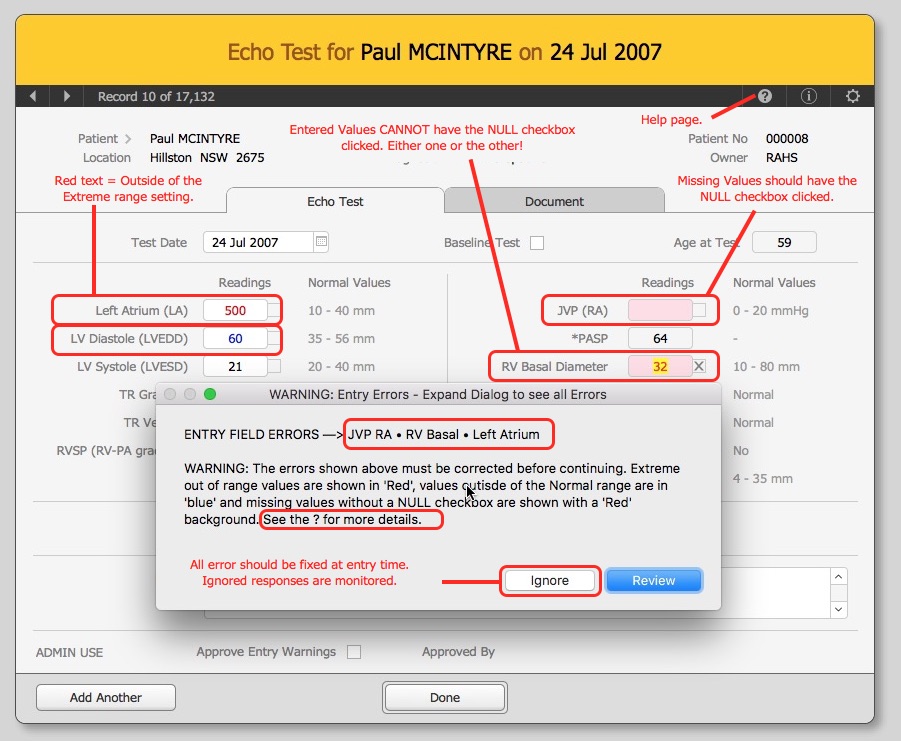
- Please check the results carefully before leaving a screens to ensure there are no typos or errors and that your entered value is in the expected units. Eg: Don’t enter a value in litres (L) if the expected units are in millilitre’s (ml).
- If you can’t read the written value then try to find the correct value from another data source. If the data is missing, then use X checkbox next to the fields value to denote that the data will not known. (see below). You can also use the comments field to note any anomalies.
- Empty fields with required values will show with a red background. A highlighted value (as shown below in yellow) signifies a contradiction. Eg. a value has been entered whilst also having the missing value checkbox enabled.
- Please enter numbers only for number fields and watch for typos and transposed numbers.
- If the field value is unknown or unreadable then click the NULL checkbox. This indicates that there is no further need to locate the value and removes the record from statistical measures.
- The Normal & Extreme High / Low values have been predefined by management. A Red value indicates it is outside of the Extreme range values while a Blue value is outside of the Normal range.
File Uploads / Documents
- Only 1 document can be uploaded per test record.
- Only PDF, PNG or JPEG images can be uploaded – all other file types should be covered into one on the allowed formats before uploading.
- Uploaded documents via the Web may only display the icon rather than a thumbnail preview.
The example is from an ECHO test – all the other tests work ins a similar way just with different fields and limits.
NOTES
- Not all warnings are shown as errors. The major red X error are shown at the top of the screen and the listings.
- The Extreme (red) and Normal (blue) upper and lower limits are set by the System Administrator.
- The Admin – Data Cleaning Checklist function will also pickup and display missing values and entry errors
- A weekly Error Report is automatically sent to the Tenant Admin listing major record errors (not all warnings are shown as errors)
- Ignored Warning Messages can be viewed by looking the Patient Audit Log which is accessed from the ‘Options’ button on the Patient record.
– End –