How Can We Help?
Search / Find Functions
This database incorporates some very powerful search tools to enable users to drill down to most parts of an entered record. Please note, we are using general examples below which may not be relevant to your database.
Understanding Context
Due to related structure of the database, the Find functions are always based on the context of where you are within the system. In other words, if you looking at a list of Postcodes in the POSTCODES section, then the Find and Report functions will be based from the context of the Postcode table. There is no point trying to find Patient Medications while in the Postcodes section! To find a Medication you would need to navigate to a MEDICATIONS table.
You could however wish to search for Patients who live within a range of Postcodes. To do this, you would need to navigate and use the Find functions in, say, the PATIENT section where you could search for Patient addresses. Please see the ‘Advanced Search Functions’ sections for further examples.
System Admin users can also use the Menu > Explore Menu to quickly navigate to the many tables (sections) within the database.
Search Symbols / Operators
Click here to view an excellent FileMaker help article, with examples, that describes all of the search symbols you can enter in to search fields to assist with your search.
Eg: Using three dots between values typed in to a find field will search for all values in that range, such as 1/1/2017…6/6/2017 finds all records where the date value is between 1/1/2017 and 6/6/2017.
The ‘Found Set’
The ‘found set’ is a term used to describe a group of FileMaker records isolated from all the available records on the basis of your search criteria.
Eg: The postcode table contains 10,000 records. Doing a search for Suburbs in NSW may list 2,156 matching records. These results are known as the ‘found set’. Using a Find or Omit function may change the results and the number of records in a found set. Don’t be alarmed if you cannot see the records you entered earlier – they may just be hidden from view as a result of a search. Use the ‘Find All’ button on the Find screens or in the Options button on List screens to view all available records in the table.
Omitting a Record
The Omit function, which is found on the detail and list screens and denoted with *, will hide a record from the current found set. Please keep in mind that it’s not deleted, it’s just temporarily hidden from view. The ‘Omit’ function on the find screen works by ‘excluding’ records that match the criteria.
Indexes and Related Fields
An index is a virtual list of unique values in a field, which is used by the database to speed up searches, sorts and internal record joins. Calculated values which reference related fields (e.g. BMI calculated using height and weight) cannot be indexed, so take longer to search and process. These unindexable fields are often denoted on our dedicated find screens by an underlined field label. Rule of thumb: if you are doing a search that includes a field where the label is underlined, it will take longer to complete the search.
Queries v Finds
You may have come across the term ‘Query’ in other applications. ie: Microsoft Access or SQL databases. Queries usually consist of:
(a) constructing some search criteria
(b) selecting columns for how the search results will be presented, and
(c) displaying the results in a table view
In this application, you:
(a) search for records using the Find functions (the results are displayed on a predefined list)
(b) choose a Report format to print the results
Dedicated Find Screens
Clicking the Find button from the button bar will usually display a screen similar to the one shown below.
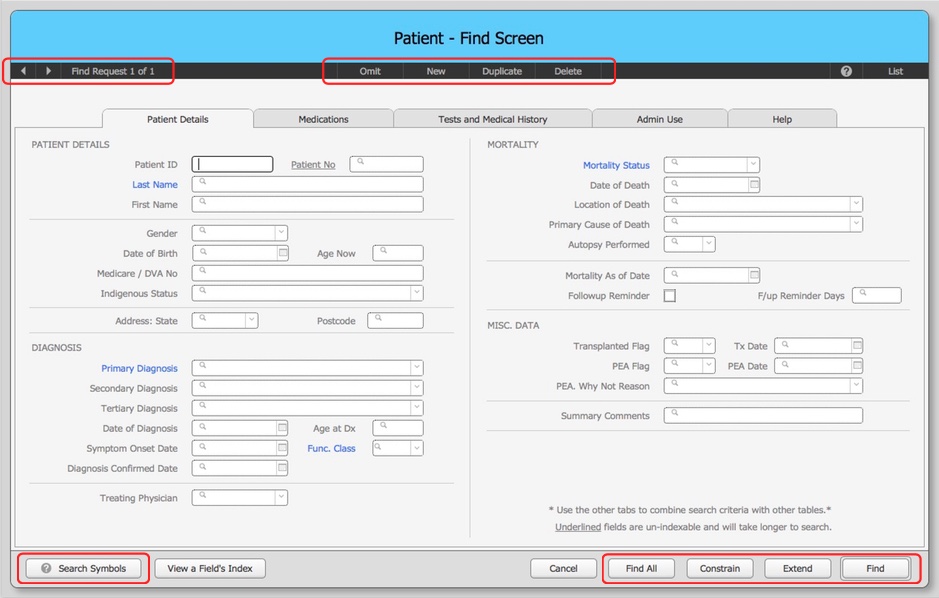
Search results (the found set) are usually presented on the table’s general List screen. From the list, the found set can be sorted and printed using the standard List functions.
Same screen Finds
In selected List and Detail screens, holding down the ‘Shift’ key while pressing the Find button key will perform the find function using the current layout rather than the dedicated Find screen. This is useful when you want to search for fields not displayed on the dedicated find screen.
Advanced Finds
The best place to construct complex searches is via the dedicated Find screens described above.
The four buttons shown in the header section can be used to build one or more search requests (rules).
Adding criteria to the same request is creating an AND request. Eg: Female AND <50 years old.
Adding a new request is creating an OR search. Eg: Primary Diagnosis of Diastolic Dysfunction OR Valvular Disease.
The Omit button is used to create an OMIT request. Eg: I want to exclude records with patient weight >120 kg.
Use the < > arrows to review the search criteria for each request. There is virtually no limit to the number of requests.
Once your criteria have been entered you can control the search method by using the buttons in the lower right corner of the screen.
- Find All :Ignore any search criteria and Find All records.
- Constrain : Search within the existing found set for any matching records.
- Extend :Any matching results will be added to any existing found set.
- Find : Matching results will replace any existing found set.
Let’s look at some examples. It is assumed you are using the Patient Search screen.
Example A (Single Request)
We want to find all Male Patients in NSW that do not have a Phone number entered (No need to enter the “”)
Enter Search Fields
Gender = “Male”
Phone Number = “=“ (we use the = sign to search for empty fields)
Click the Find button to list any matching results
Example B (Multiple Requests)
We want to find all Male Patients in NSW (OR) QLD, but exclude anyone over 80 years old.
Enter Search Fields.
Gender = “Male”
Sate = ‘NSW’
Click the Duplicate button found in the header and change State = ‘QLD’
Now click the +New button then the Omit button and enter Age = ‘>80’
You should now have three Find requests. You can use the < or > arrow to review them
Click the Find button to list any matching results
Example C (Constrain Find)
We now want to search within Example B’s search results and only show records within the postcode range of 2000 to 2010.
Enter Search Fields
Postcode = ‘2000…2010’ (we can use three dots … between criteria to denote a range search)
Click the Constrain button to search within the existing found set (previous search results from Example B).
The search results are usually displayed on a browse list. Records can then be sorted and printed.
Other Tools
Click the Search Symbols button to show a list of allowed search symbols and their functions. Eg: <>@=
Click the View a Fields Index button to show a list of unique values entered into an indexed field. Very handy for data cleaning.
Underlined fields cannot be indexed and will take longer to search.
Once on the Lists, you can also use the Go Related function to drill down into related records. Eg: Show me all the Medications for this list of Patient records.
– End –